Changing Packet Time Display Settings (Menu: View > Time Display Format)
There are situations where the Time column in Wireshark’s packet capture panel must display a full timestamp, such as year, month, day, hour, minute, and second. For example, when generating screenshots for evidence collection or performing performance analysis, displaying the date in the timestamp becomes essential.
Wireshark provides more than ten different time display formats under View > Time Display Format, allowing users to select the format that best fits their purpose or preference and apply it to the Time column.
This feature is useful when you want to clearly identify and review the packet flow between specific hosts among the vast number of packets and host interactions captured by Wireshark.
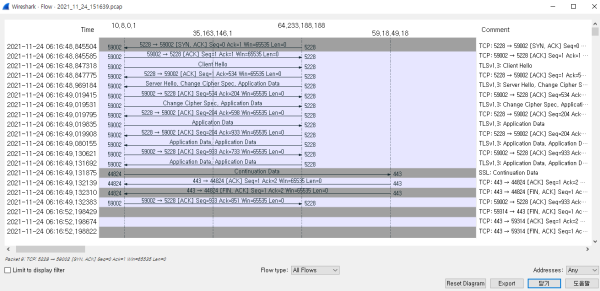
When you select Statistics > Flow Graph, Wireshark visualizes the captured packets from a flow perspective and displays them as a sequence diagram-style graph.
The flow types provided by this feature include All, ICMP, ICMPv6, UIM, and TCP, and users can review the desired packet flow based on the host and port information displayed on the screen.
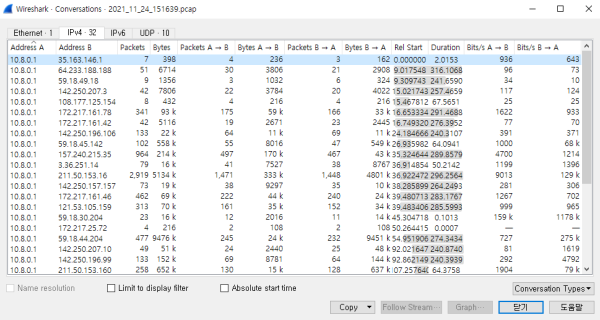
Viewing Packet Transmissions Between Specific Hosts (Menu: Statistics > Conversations)
If you want to view statistical information for packets exchanged between specific hosts among the large volume of captured traffic, you can use Statistics > Conversations to check packet statistics in units such as PPS (packets per second) or BPS (bytes per second).
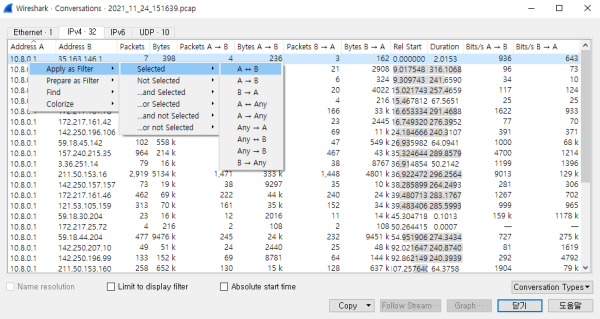
In addition, by right-clicking on a desired conversation, you can perform more detailed analysis using the provided context menu options—such as applying a display filter, defining the search scope, or changing the packet colors.
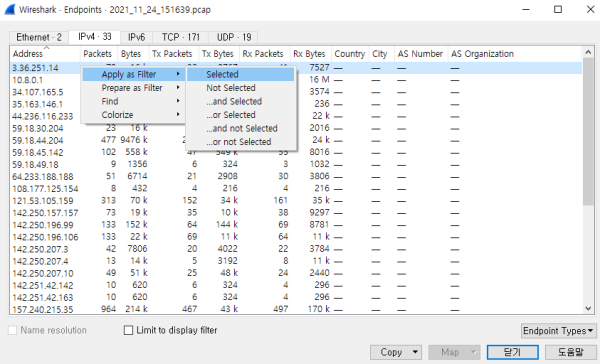
The Statistics > Endpoints menu in Wireshark provides statistical information—such as packets per second (PPS) and bytes per second (BPS)—showing how many packets were sent or received by each endpoint among the large number of captured packets.
In addition, by right-clicking on a specific endpoint entry, you can perform more detailed analysis using the context menu options—such as applying a display filter, defining the search scope, or changing the packet colors.
Searching for Packets Containing Specific Strings (Menu: Edit > Find Packet, Ctrl+F)
There are many cases where you need to locate packets that contain specific strings for various purposes. By using Edit > Find Packet or the Ctrl+F shortcut, Wireshark allows you to search for packets containing specific strings using text, hexadecimal values, or regular expressions.